
Welcome to
Our Tutorials
Our tutorials help users install and use AlgoMakers strategies with ease. Each one visually demonstrates how to use our strategies with step-by-step instructions.

Get Started in 6 Simple Steps
Follow these steps to start using AlgoMakers strategies on TradingView
Create Account
Sign up or log in at algomakers.ai
Browse Strategies
Explore available strategies in the Dashboard
Review Performance
Check full backtest performance data
Subscribe
Pay using your preferred cryptocurrency
Receive Invite
Get TradingView invite within 4 hours
Start Trading
Apply strategy and monitor signals
What is TradingView?
TradingView is a comprehensive charting platform that doubles as a vibrant social network for traders and investors.
- Free access to financial charts for multiple markets
- Tools to find trading opportunities
- Connect brokerage accounts and automate trading
- Trade directly from the charts
- Real-time data for faster decisions
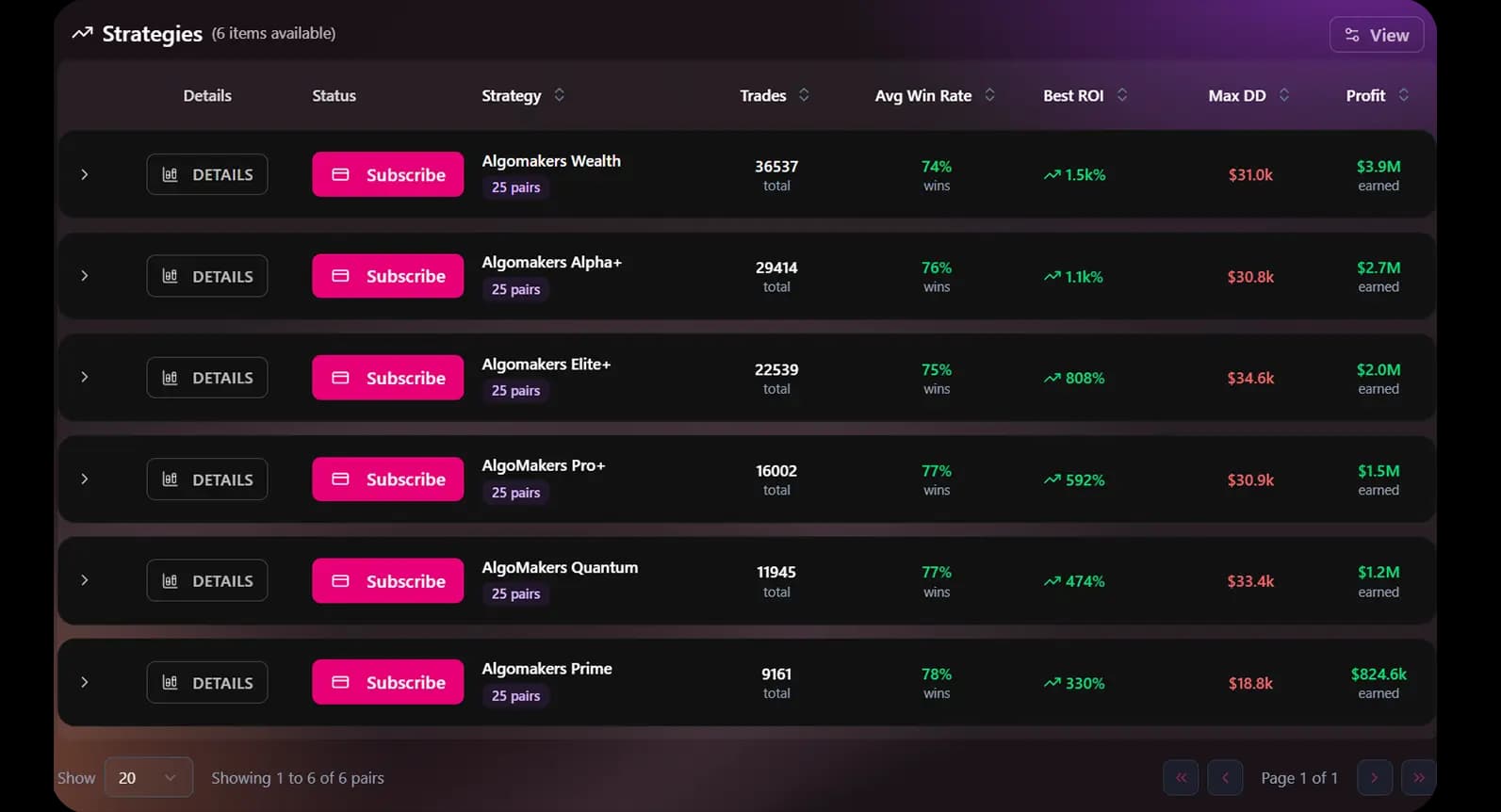
Strategies Dashboard
Your hub for discovering and evaluating strategies. Each strategy card displays key performance metrics.
Each strategy card displays:
Pair & Timeframe
Trading pair and time interval
Monthly Returns
Average monthly performance
Win Rate
Success rate and drawdown
Backtest Data
Duration and capital metrics
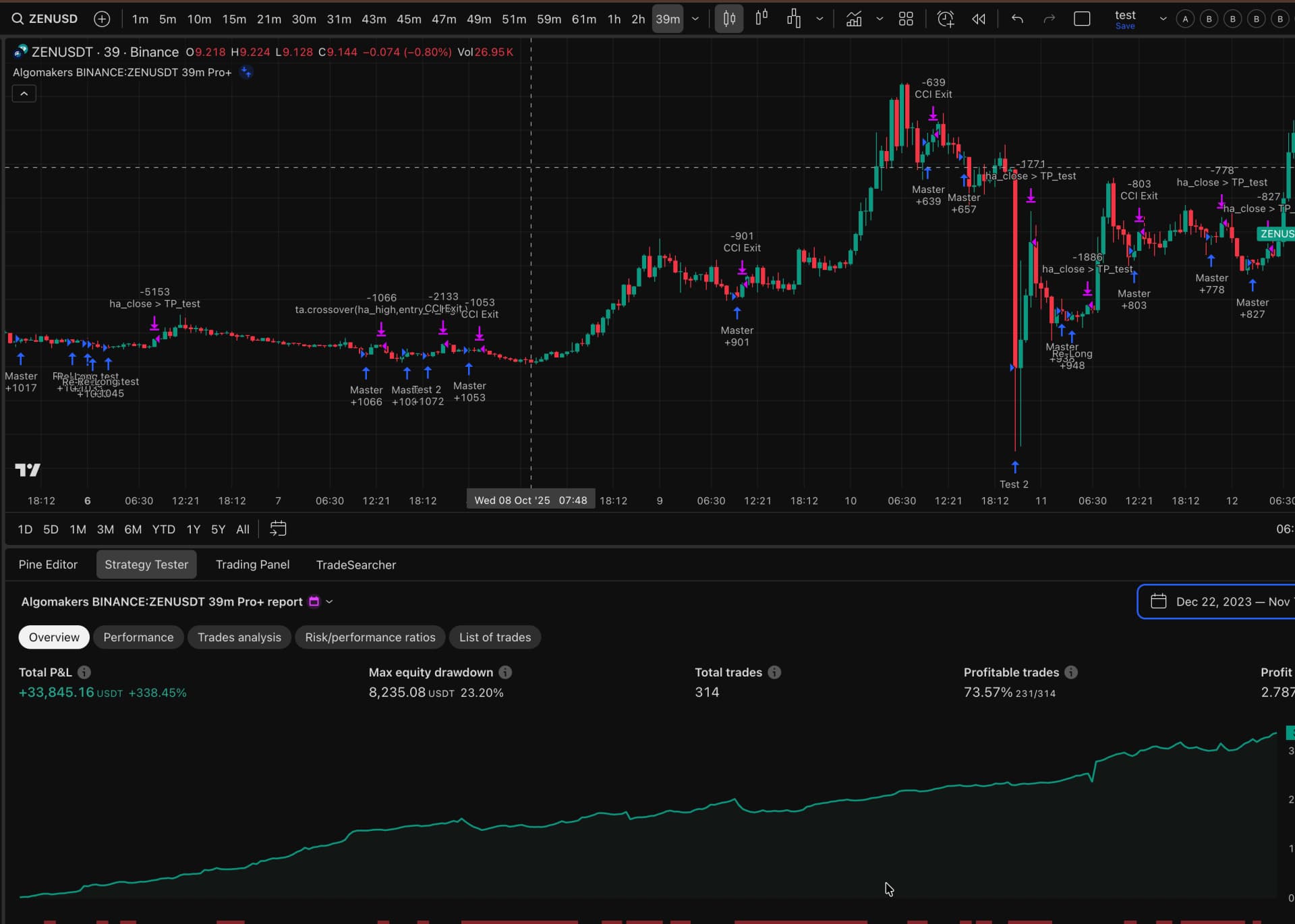
Full Pair Backtest Reports
Every strategy includes a detailed backtest to verify historical consistency.
Tip: Use a clean, high quality chart that matches your theme.
These metrics help you verify historical consistency and understand behavior across market regimes.
Cumulative Profit
Total profit over time
Trade Count
Number of executed trades
Profit Factor
Risk-adjusted returns
Drawdown
Maximum loss from peak
Subscription & Payments
- 1
Choose your preferred strategy from the Dashboard
- 2
Click Subscribe
- 3
Pay using your preferred cryptocurrency
- 4
Subscription is processed automatically after confirmation
- 5
Receive TradingView invite within 4 hours
Note: Each subscription is tied to a specific pair and exchange. If you switch to another pair or timeframe, the strategy will not execute.
Access on TradingView
- 1
Open TradingView and go to Indicators → Invite only scripts
- 2
Find your strategy name (e.g., AlgoMakers BTCUSDT 1H Pro+)
- 3
Click to add it to your chart with preconfigured setup
- 4
Use TradingView Alerts for desktop/mobile notifications
- 5
Repeat for multiple subscribed strategies
Want to know more?
Join our Telegram channel for exclusive updates, tips, and community support!
Join Our Community
We help traders automate their strategies with AI-powered tools. Professional-grade algorithmic trading solutions for modern investors.
Company